Set-up your Motive Integration
IMPORTANT NOTE: If you access more than one company or business unit in Motive using the same Motive credentials, you'll need to create separate Motive users for each company and business unit. Give each of those new Motive users access to only one Motive company/business unit. Then repeat steps 1 through 5 below, using a new incognito browser each time and linking HaldiTech business units to the corresponding Motive companies and business units, using the appropriate Motive user credentials.
Step 1. Open HaldiTech in an Incognito Browser window.
Step 2. Go to "Settings", then "Account Settings. Click on the "Integrations" tab. Scroll down to "GoMotive Integration", then click "Authorize Connection"

Step 3. If you are already logged into your Motive account, it will connect once you push "Authorize Connect"
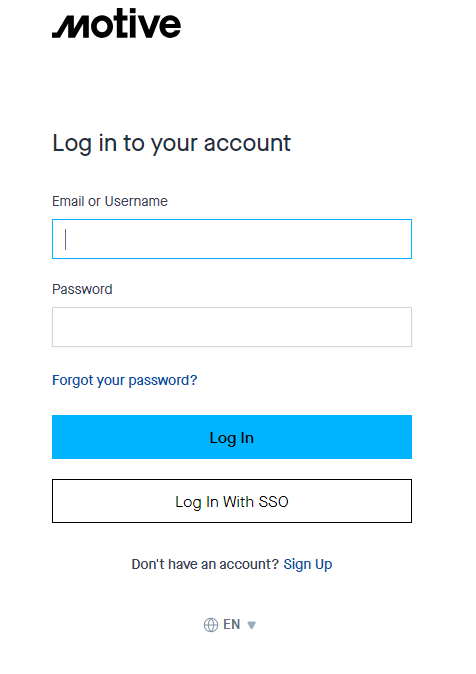
Step 4. If you aren't already logged in, it will prompt you to enter your Motive login credentials.
Step 5. That's it. We'll automatically start pulling your Motive data into you HaldiTech account. You can check the integration is working by going to "Maintenance", then "Odometers". You should see "GoMotive" in the source column (it can take a few minutes after you set up the integration for the odometers to update).
Need Help? support@halditech.com or call us at 470-594-2534
Was this article helpful?
That’s Great!
Thank you for your feedback
Sorry! We couldn't be helpful
Thank you for your feedback
Feedback sent
We appreciate your effort and will try to fix the article